One topic on which I get the most questions is the processing of time-lapses. I mean the technical part of it. Most users clearly understand the general concept, which is based on taking still photographs that are then merged at 24, 25 or 30fps to get a moving picture. But how exactly the process goes and what kind of software is better to use continues to arise questions for the beginners in the time-lapse technique.
The aim of this article is no other than to reveal the keys of this process. But first I have to clarify that there are several ways for processing time-lapses. There are many different programs and workflows, I’ll explain the one that works best for me. I use RAW files, Adobe Lightroom and Apple Quicktime Pro, which certainly work both for Mac and Windows.
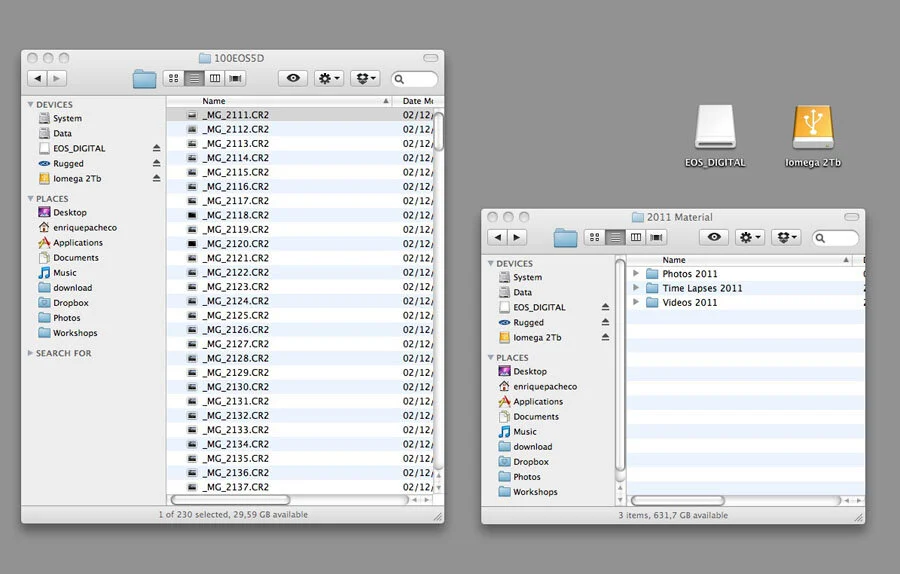
Copying files. The first step is the most simple one which I`m sure you all know. That is copying the material from the memory card to your hard drive. I prefer to do this using the computer’s operating system and not through the import option of Lightroom. I like to organize it into folders that are appropriately named including the dates etc. This helps to maintain order in the database,
so that you can later find the folders easily.
Importing to library. One of the biggest advantages of Lightroom (compared to other editing software) is the possibility of working with catalogs and libraries, thus it is possible to navigate through our pictures as collections, tags, favorites, etc..
I usually drag the folder with the time-lapse photos where the Lightroom logo is, which then opens the import menu. You can also open the program, then click on the File menu and from there choose Import. So you then have the folder and its files available in the Lightroom Library tab.
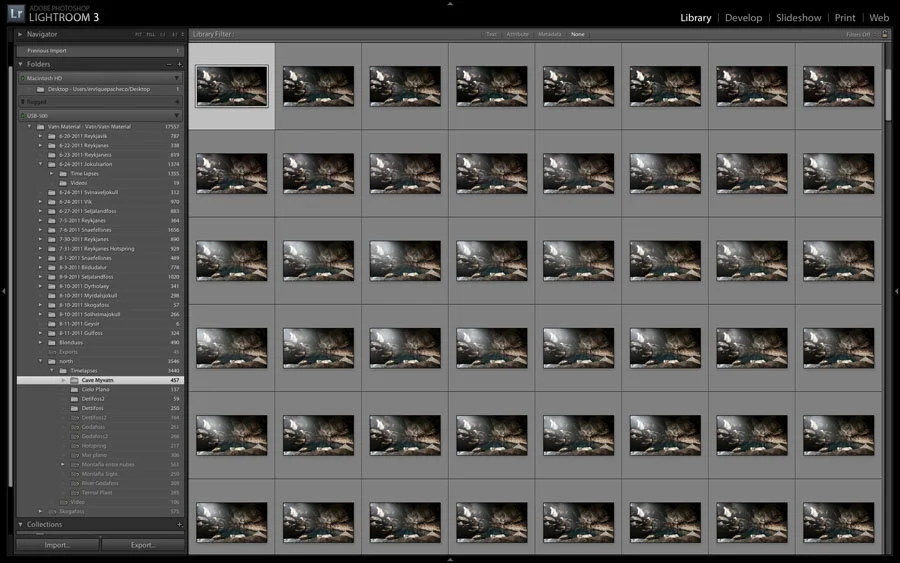
Developing the files. Now it´s time to develop the photos. When shooting in raw, you have greater control over the images, as the raw format is uncompressed and enables high quality and much more control over the colors. Select the first take and perform any necessary adjustments before the next step. Let’s see what are the basic settings.
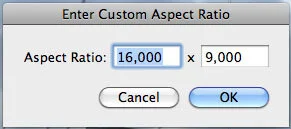
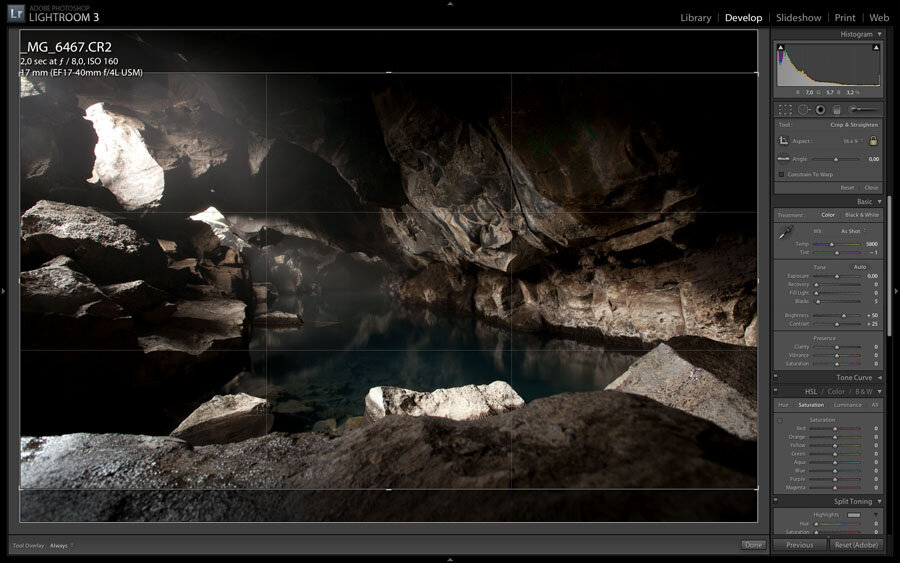
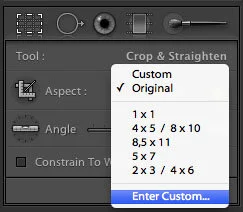
Aspect ratio: I like to start by editing the aspect ratio. Usually our pictures have format of 2/3 or 4/3, depending on the sensor of the camera. But as our goal is to make a video, we need to convert it to 16/9, as this is the standard format of most of the distribution channels. Select the crop tool and insert the new aspect ratio manually. Insert 16:9 and from this moment it will be recorded as “preset” and can be used in the next steps. As you can see in the cropping box on our photograph it now has ratio of 16/9.
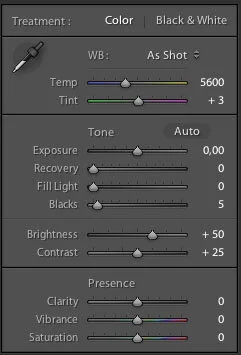
Levels: The following adjustments we should pay attention to are levels, exposure, shadows, contrast, saturation, noise, etc.. Going through the process as we normally do with our pictures, thanks to the versatility of working with RAW. Finally, we adjust the sharpness of the image.
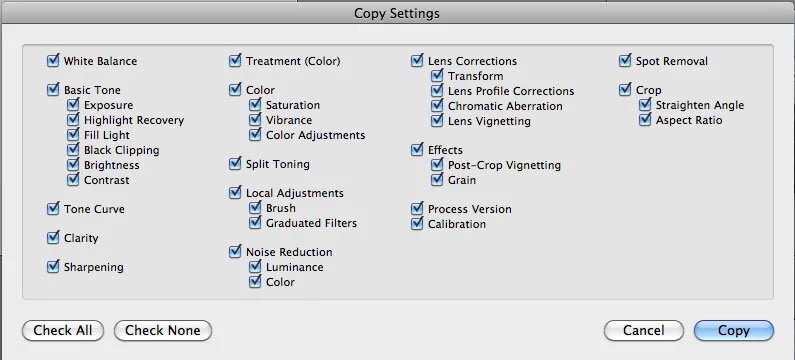
Batch processing: This is perhaps the most interesting part of developing the time-lapse. Apply the same settings You used with the first picture to all your photos. To do this return to the Library tab, select the first shot, and go to the photo menu, developing settings and click on “Copy Settings”. You can also use the command “ctrl + shift + c” for Windows and “shift + cmd + c ” for Mac.
This will open a popup window where you can select the settings you want to copy. I usually select all.
The next step is to select all photos, for that you can use “ctrl + a”. When they are all selected, it is time to apply the settings of the first picture. For that You just have to press “shift + ctrl + v” or “shift + cmd + v”. Immediately all the shots begin to take the appearance of the first one, but do not panic, because we are working on raw, so it´ just a metadata change. You can always return to the original image without any loss.
Exporting to jpg or tiff: After that it’s time to export to jpg or tiff for making it possible to open it in a video editing program. If we want the highest quality possible and disk space is not a problem, it is better to do a tiffs sequence. But in most cases a jpg at 100% quality will be more than enough.
After selecting the images, click on the export tab in the lower left corner of the library. This will open a popup window where you can choose the format, size, quality and other parameters such as focus and name.
I highly recommend you to create a “preset” with the most commonly used settings, so that you won’t have to insert the settings to each file you are editing.
On the following picture you can see which one I use most frequently.
The exporting process can take a long time and to converting 300 RAW images to jpg or tiff is not a joke. But the advantage of Lightroom is that we can continue working on other files while exporting. That’s real multitasking!
Turning photos into videos. Some might think that we are continuing from where we were, with lots of still images to be converted into a motion video. And it’s partly true, but the difference is that now we have these images correctly retouched and resized to the size ant ratio of the final video.
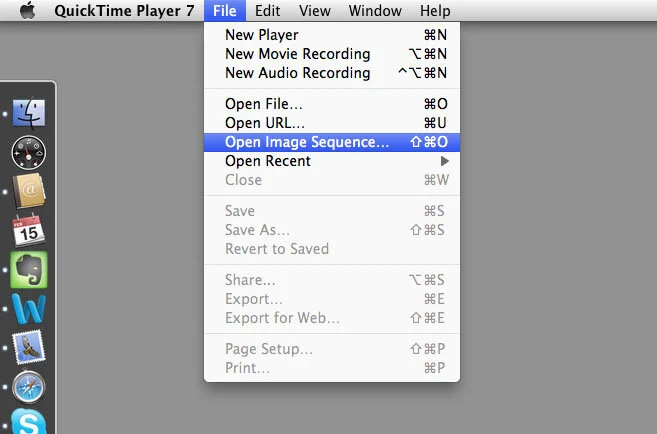
The next step is to merge them into a video clip. For doing that use Quicktime Pro, as it is very quick and easy. Please note that it must be version 7, version X or Player will not work.
Open the application, select “Open Image Sequence” and look for the folder where you have the pictures in jpg. Choose the first one, then select the frame rate of the clip. It is important to choose 25fps if you are in Europe, 30fps if you are in USA or Japan, and 24fps if the video is being made for the big screen.
Then hit ok, and a few seconds later, you have your image sequence done.
Exporting the video. Guess you noticed that I ended up saying that you have a sequence of images, not a video file. That is because until you have not exported the video with a certain codec you just have a sequence of jpg images.
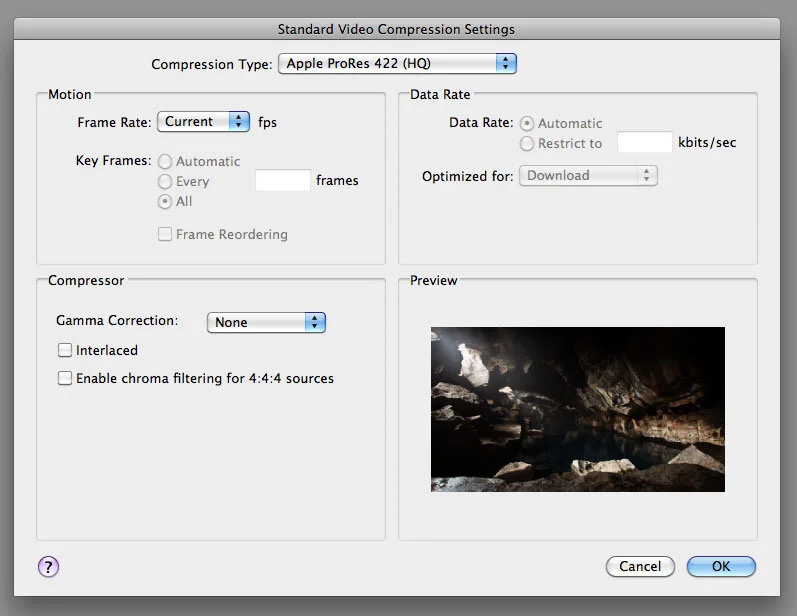
In most cases, the purpose of the clips is to be part of a project in a non-linear editing software, like Final Cut or Adobe Premiere. In these cases, you need the highest quality and also a native codec. The most popular one is the Apple ProRes, which has a great balance between quality and file size. For my productions I use Apple ProRes HQ, 4:2:2 10bits without gamma correction. The more convenient resolution is FullHD or 1920×1080.
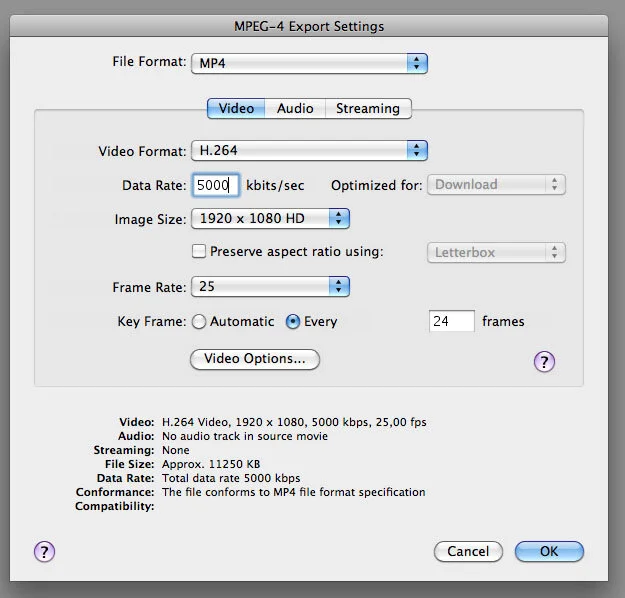
Perhaps your clip will go straight to internet, in this case it is best to export it to a reading codec. The most popular is the H264, but if you are hosted on Vimeo, I recommend using the following image settings.
I hope that with this tutorial I have helped you with your first steps in the world of time-lapse. If there are any questions, here’s my email: info@enriquepacheco.com


Hola Enrique,me ha gustado mucho tu tutorial sobre como tratar el time lapse, no obstante y aunque has dicho que hay varias técnicas para revelado, queria comentarte lo del lightroom, la verdad que desconozco el programa, ¿esta herramienta va integtrada en el photoshop o va por separado?, ¿sabes si con sólo con el photoshop se puede hacer dicho revelado?
Pues nada más estoy ansioso por saber más sobre esta técnica de time lapse y te animo a que nos sigas deleitando con estos tutoriales que a mucha gente como yo nos encantan.
saludos y un abrazo
Roberto
Hola Rober, el lightroom no va incluido en la suite de photoshop, tienes que comprarlo aparte. Hoy en dia la mayoría de los fotógrafos usamos lightroom, y el photoshop ha quedado para otros menesteres.
Saludos.
muy muy bueno, y muy sencillo. Gracias por compartirlo. Me encantan tus video
Gracias.
well thank you E. Thank you, for keeping it simple and understandable.
I just learned that I have jet a lot to learn
Best to you E
Glad you liked it.
Hey! Está muy bien el tuto. Pero ¿por qué recortar en esta parte de la postpro? ¿No sería mejor importar directamente en after por ejemplo, sobretodo si vas a hacer movimientos de cámara? En qué resulta beneficioso convertir la secuencia de imágenes en un video antes de importar a algún soft de enl?
Este tutorial está enfocado a un workflow en el que no es necesario AE, por supuesto que se puede hacer como tu dices, pero eso es sólo si tienes AE y quieres usarlo y si vas a hacer movimientos, si no los necesitas, este workflow es mas sencillo.
hola Enrique felicidades por las experiencias ya obtenidas, y sobre todo por compartir conocimiento, pregunto ¿existe alguna forma de realizar el efecto time-lapse sin sacar fotos con las dslr ya que tengo entendido que esto acaba con el obturador de la cámara? ¿tal vez algún programa de mac que identifique los frames que deseamos utilizar y los otros los elimine, es decir que se grabe un video con la 5d mark II de 20 minutos y sin interrupciones, es posible poder ver y seleccionar los frames que necesitamos de este video ?
gracias y espero una idea.
Hola Boco, gracias por comentar.
Siempre puedes grabar un video y acelerarlo en un programa de edición, pero el resultado no será el mismo, ya que no puedes procesar la imagen como lo haríamos en fotografía, donde obtenemos mucha mas calidad y control gracias al RAW y a la mayor resolución de la camara en modo foto.
No te preocupes por el obturador, tarda mucho en morir, yo llevo mas de 75.000 disparos y sigue funcionando sin problema, eso son muchos disparos, casi dos años de uso diario.
Saludos.
Hola Enrique gracias por responder, pero mi pregunta va relacionada mas a lo siguiente: tengo grabado con la mark II un video de 20 minutos aproximadamente, de una montaña con nubes, claro que podría acelerarlo pero perdería mucha calidad. Yo quería saber si existe algún programa que me ayude a visualizar los frames del video uno a uno y poder identificar y programar la eliminación de estos fotogramas, mas o menos lo que se hace en post con el twixtor para conseguir el efecto del super slow, mi razonamiento cree que esto es posible ya que son frames que existen al contrario de cuando realizas el efecto slow, en un programa de edición comun se podria cortar frame por frame pero esto requiriria mucho tiempo cortar y eliminar 25 frames por segundo, imagine… ¿existe un programa que me ayude con esto?
gracias por tu ayuda.
No conozco ninguno que haga eso. Y al acelerar no pierdes calidad, tampoco la ganarías haciendo lo que dices. Los frames son los que son y tienen la calidad que tienen. En ese caso 1920×1080 a 72pxl. en h264.
Muy interesante. Yo tadavía no he hecho ninguno. Las dos nuevas joyas de Nkon D4 y D 800 vienen ya preparadas para producir directamente un video de Time Lapse. ¿Lo has probado? ¿Ahorra tiempo y mejora la calidad final?
Gracias.
No lo he provado, pero creo que no es de gran ayuda, ya que yo siempre proceso los raw en el mac, no dejaria dicha tarea a una camara.
Saludos
El proceso con RAW es de mucha mejor calidad, las Nikon montan una película en una calidad bastante baja para mi gusto. No vale como trabajo profesional.
Por fin tengo mi D4, y he empezado con la técnica del video time lapse, aunque por ahora sólo he realizado estas tomas con luz diurna, a ver si me animo por la noche. Sí, están hechas o procesadas directamente por la cámara, y creo que la calidad es aceptable para internet, ¿no te parece?
Me gustaría apuntarame a tus talleres en esos lugares maravillosos pero hay que avisar con tiempo y reunir el dinero. Quizá el año que viene.
Aquí tienes estos enlaces por si quieres ver unos pequeños videos de 25 segundos.
Gracias por tomarte esa pequeña molestia:
http://youtu.be/TPEsIn6rNyo
http://youtu.be/tvfuP-VzOIk
Si yo tuviera una D4 tiraría siempre en RAW, ya que su resolución no es excesiva. Y con este archivo tienes un mayor control y puedes exportar a cualquier formato. Estos videos que genera no están mal, pero dejan poco margen de maniobra en la edición.
Por cierto, procura tirar a menor intervalo y con mayor obturación, conseguirás mejor efecto motion blur.
Te esperamos en nuestros talleres.
Un saludo.
Interesante aportación de tu experiencia para los que estamos interesados e iniciándonos en la experiencia timelapse. Te sigo en twitter.
-Aprovecho la ocasión para preguntarte acerca del enfoque que hay que aplicar a la cámara durante la secuencia de fotos, si es que hay que enfocar antes de cada disparo, o sólo enfocar en la primera instantánea y después poner el enfoque manual.
-Y también en el intervalómetro, ¿qué frecuencia de disparo es la mejor opción para ni pasarnos ni quedarnos cortos?
-Y relacionado con ésto último, ¿es necesario hacerse de un grip para la cámara o con una sóla batería es posible completar una sesión de timelapse?
Enhorabuena por tu trabajo y gracias!
1-El foco siempre en manual.
2-El intervalo depende de la escena, mira en los consejos, hay varios ejemplos.
3-Dependerá de cuanto dure la toma y tu batería, haz pruebas.
Saludos y gracias por pasar por aquí.
Enrique Felicitaciones por tus trabajos, me facino el video de los landscpaes en RAW.
Te hago una consulta, tengo la D5100 y tengo que hacer un time lapse sacando fotos a un proceso de unas 8 hs aproximadamente al aire libre (es una limpieza) En tu experiencia, voy a necesitar una bateria extra seguro?, y una tarjeta de 8 g me serviria? (las hare en Jpg no es necesario tanta calidad para esto ). Te consulto porque mi camara es nueva y no se aun si me rinde 8 hs una bateria.
Muchas gracias, saludos!
Hola Eugenia, gracias por tus palabras.
Yo conectaría tu cámara a una batería externa de gran capacidad, porque 8h es mucho tiempo. Si no tienes acceso a corriente, que sería lo mejor.
Saludos.
Hola Enrique, yo también uso el Quicktime Pro para editar los videos pero tengo una duda, ya que, en mi opinión, es un programa cómodo quizas para trabajar sólo con un vídeo a la vez y ya es complicado para coordinar la música en él, ya que, que yo sepa, no se puede trabajar con capas.
La pregunta es: cual sería (compatible en Windows 7) otro programa recomendado para edición de varios timelapses y música que te permite trabajar en capas y más cómodamente?
He oído de Final Cut Pro X, pero creo que es sólo para Mac.
Gracias
Quicktime es solo para montar el clip. Para editar tienes que usar Adobe Premiere o Sony Vegas.
Saludos.
What if I dont have the Pro Res 422 Compression option? I have version 7.7.1 at Quicktime
You have to install the codecs. Otherwise you can use PhotoJPG.
Cheers.
Great write-up Enrique! Thank you for the information. I noticed on Vimeo that you also use LrTimelapse; I would be immensely grateful to read about your process using that program as well. Cheers!
Thanks.
I use Lrtimelapse indeed, it´s great. Don`t do anything special, you can find great tutorials in its website.
Cheers.
Muchísimas gracias Enrique, llevaba tiempo buscando algo tan claro y conciso, justo me encontraba atascado en este paso, yo usaba VirtualDub para montar los fotogramas pero luego me encontraba con el problema de compresión a usar, y gracias a tu idea de Quicktime creo que he solucionado el problema, ya en los comentarios veo que montáis con Premiere o Sony, sony era mi segunda opción para la edición …Alguna recomendación? ..uso Windows 7 y siempre me ha apetecido probar Premiere, vengo de Photoshop yme gusta el entorno de trabajo de Adobe, supongo además que para Premiere se encontrará bastante más material de apoyo… Bueno no te lío más, muchas gracias de nuevo…
Premiere es una buena opción también. Por que no…
Veo que utilizas Quicktime para el montaje del video, yo mi primer timelapse lo hice con ligthroom tanto revelado como video,pero para el video tu como experto cual crees que es mejor para el montaje del video
El problema de Lightroom es que no te da opciones de codecs profesionales, como el Prores u otros.